Author: Chip Bennett

  • An Unusual Sighting

    My normal route home from work takes me right by the airport. It’s not unusual to see planes taking off or landing.

    However, it is quite unusual to see the following aircraft a mere 50-100 feet off the ground, on an approach:

    Air Force One

    Air Force One (Image found at PlaneBuzz)

    The plane touched down on Runway 11-29 right next to I-70, right before I exited onto Cypress.

    A Boeing 747 painted in light blue with the words “United States of America” on the fuselage is pretty unmistakable; still, I hadn’t heard anything about President Bush making any appearances in Missouri today. I thought perhaps it could have been picking up some dignitaries from last night’s VP candidate debate.

    As it turns out, it was President Bush, after all.

  • WordPress 2.6

    The WordPress Development blog announced today’s release of WordPress 2.6. Lots of (mostly incremental) changes; see the following video:

    Download WordPress 2.6 today.

    Also, be sure to let me know if anything seems broken here after the upgrade.

  • How To Synchronize Google Calendar With KDE-PIM (Part 2)

    This guide has been moved to the Tutorials section, but will remain here for historical reference. Please refer to the KDE-PIM-GCal Sync: GCalDaemon Tutorial for any future updates to this guide.

    In my previous post, I detailed how to use OpenSync, MultiSync, and KitchenSync to synchronize Google Calendar with KDE-PIM.

    The reason that I do not use this method to synchronize KDE-PIM with my Google Calendar is three-fold:

    1. If you notice on the Google Calendar group member configuration dialogue, you will see the statement: Please note that currently the password is stored as plain text in the plugin configuration file. That means that your gmail password is stored in plain text. Granted, the configuration file is located in the home directory, which is protected; even still, I would prefer not to leave the password in clear text.
    2. The plugin appears to be limited to a single calendar. I use at least four different calendars, and would like to synchronize all four.
    3. The synchronization is would like to add an event to either KDE-PIM or Google Calendar, and have the synchronization take place without my intervention. (I know, I could set up a cron job and msynctool or something to automate it.)

    Fortunately, GCalDaemon provides all the functionality that I need for Google Calendar synchronization.

    Part 1: What is GCalDaemon?

    From the GCalDaemon web site:

    GCALDaemon is an OS-independent Java program that offers two-way synchronization between Google Calendar and various iCalendar compatible calendar applications. GCALDaemon is primarily designed as a calendar synchronizer but it can also be used as a Gmail notifier, Address Book importer, Gmail terminal and RSS feed converter.

    Part 2: GCalDaemon Installation Prerequisites

    The first two requirements for GCalDaemon should seem obvious:

    • A Gmail account
    • An iCal-compatible calendar application (KDE-PIM in our case)

    The only package dependency is Java Runtime, version 1.5 or later. Install either of the following packages (but not both):

    • sun-java6
      (Sun’s Java Runtime)
    • openJDE-6-jre
      (open-source Java runtime)

    Part 3: GCalDaemon Installation

    These instructions are generally based on the GCalDaemon web site’s installation instructions. They do require use of the command line, but aren’t anything too painful.

    Begin by downloading the latest Linux installation ZIP file.

    Unzip this archive under the ‘/usr/local/sbin’ directory. Assuming you downloaded the ZIP file into ~/downloads/, then:

    cd /usr/local/sbin

    unzip ~/downloads/gcaldaemon-linux*.zip

    chmod -R g+w /usr/local/sbin/GCALDaemon

    chmod 755 /usr/local/sbin/GCALDaemon/bin/*.sh

    Test your setup by trying to run the password-encoding script:

    /usr/local/sbin/GCALDaemon/bin/password-encoder.sh

    If you see something like the following, then GCalDaemon is successfully installed:

    Your Google password: _

    We will run the password encoder script later, during configuration; so for now, hit ENTER to exit the script.

    Part 4: iCalendar File Setup

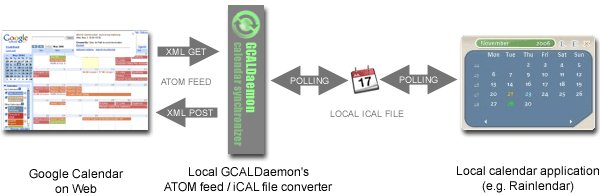
    We will use the file-based synchronization scheme, explained by the following diagram (provided by the GCalDaemon web site):

    File-based synchronization using GCalDaemon

    The key to this synchronization scheme is to have an iCal calendar file that is read/written by both GCalDaemon and KDE-PIM.

    First, create the iCal file using KDE-PIM:

    1. In Kalendar view, select “Add Calendar”.
    2. In the dialogue that appears, choose “Calendar in Local File”.
    3. In the Resource Configuration dialogue:
      • Under “General Settings” give the calendar file a name (for this guide, we will assume the file is named “test”)
      • In “Location” browse to the location you wish to store the file (this guide will assume “~/calendars/”)
      • Under “Calendar Format” ensure “iCalendar” is selected

    You will now see your new calendar appear in KDE-PIM. If you want, add a sample event in your calendar.

    Now that the calendar file is created, we can configure GCalDaemon to synchronize this file with Google Calendar. To do so, you have two options: editing the configuration file directly, or using the Configuration Editor application.

    If you are only synchronizing one calendar file, either method is equally easy. I did find, however, that configuring multiple calendar files to synchronize (I have four) was much easier using the Configuration Editor.

    This guide will first explain how to edit the configuration file directly, and then how to run the Configuration Editor.

    Part 5a: GCalDaemon Configuration (Editing the Configuration File)

    Using the command-line instructions above, run the Password Encoder script:

    /usr/local/sbin/GCALDaemon/bin/password-encoder.sh

    At the prompt, enter your gmail password. The script will return the result of encoding the password. Take note of this result; you will need it shortly.

    GCalDaemon gmail password encoder

    Go to Google Calendar, and copy the iCal URL for your calendar’s Private Address on the Calendar Settings page.

    Google Calendar settings iCal URL

    Now you are ready to edit the configuration file. Using the editor of your choice (e.g. Kate), open the /usr/local/sbin/conf/gcal-daemon.cfg file. Edit as follows:

    1. Set the ‘file.enabled’ property to ‘true’
    2. Set the ‘file.google.username’ property to your Gmail address
    3. Set the ‘file.google.password’ property to your encoded password
    4. Set the ‘file.private.ical.url’ property to iCal URL, without protocol and hostname

    The following screenshot details the above instructions:

    GCalDaemon configuration file

    Save and close the file. Everything should now be configured.

    Part 5b: GCalDaemon Configuration (Configuration Editor)

    GCalDaemon doesn’t provide a KMenu shortcut for the Configuration Editor. (You can create one, but doing so it outside the scope of this guide.) To launch the Configuration Editor, use the command-line to run the Config Editor script:

    /usr/local/sbin/GCALDaemon/bin/config-editor.sh

    This script will run the Configuration Editor, which looks something like the following:

    GCalDaemon Configuration Editor

    The GCalDaemon website has a nice guide for how to configure using the Configuration Editor (note: the method I describe uses the Offline-Enabled mode). Please see the GCalDaemon guide for screenshots. Also, This guide by MakeTechEasier does a nice job of explaining how to use the Configuration Editor.

    To configure:

    1. Select the second tab (HTTP Synchronizer) and disable the HTTP-based synchronizer.
    2. Select the third tab (File Synchronizer) and enable the file-based synchronizer.
    3. Enable the ‘dial-up connection’ mode (second checkbox on this page)
    4. Click on the ‘Google Accounts’ button.
    5. Register your Google Account (note: if you have already configured using the previous method, you will already see your Google account listed): Click on ‘New Account’, type in your Gmail address and password (twice), then click on ‘Verify’ button.
    6. After the verification, click on the ‘OK’ button in the “Verify” dialogue.
    7. Back in the File Synchronization tab, ensure the tab (at the bottom) that corresponds to your Gmail account is selected, and click on the ‘New’ button (bottom left). The Google Calendar Synchronization dialogue will appear. Configure as follows:
      • Google Account: Your Gmail account should be selected; if not, select it from the drop-down menu
      • Google Calendar: paste in the Private URL for your Google Calendar (which you noted previously, in Part 5a)
      • iCal File: paste in the file location for your local iCal file, used by KDE-PIM (which you created previously, in Part 4)
    8. Click “OK” to be returned to the File Synchronization tab. You will now see the file-synchronization information for your Google Calendar and local iCal file.
    9. (Note: if you want to set up multiple calendar-file synchronizations, simply repeat the above steps iin the File Synchronization tab for each calendar to by synchronized. In my case, I have four separate file synchronizations defined here.)
    10. Close the Configuration Editor.

    GCalDaemon is now fully configured.

    Part 6: Running GCalDaemon

    Start GCALDaemon by running the “standalone-start.sh” script:

    /usr/local/sbin/GCALDaemon/bin/standalone-start.sh

    GCalDaemon is now running. You should now see your Google Calendar events in KDE-PIM. Verify the two-way synchronization by adding an event to your calendar in KDE-PIM. Depending on the polling frequency in gcal-daemon.cfg, it may take a few minutes for your new event to appear in your Google Calendar.

    It would probably be a good idea to set this script to be started at session startup. (Again, doing so is outside the scope of this guide.) If this script is running, GCalDaemon will continuously poll both your Google Calendar and your local iCal file, and keep both in synch.

    If, however, you don’t want to leave the script running, you can use the one-time synchronize script whenever you want to synchronize your calendars. This script will run the synchronization and then exit:

    /usr/local/sbin/GCALDaemon/bin/sync-now.sh

    That’s it! Your calendars will stay perpetually synchronized (if you use the always-running script) or will synchronize on command (if you use the one-time synchronization script). Again, the setuip is more involved than using OpenSync, but in the end, maintaining synchronized calendars is easier and more secure using GCalDaemon.

  • How To Synchronize KDE-PIM with Google Calendar

    This guide has been moved to the Tutorials section, but will remain here for historical reference. Please refer to the KDE-PIM-GCal Sync: OpenSync Tutorial for any future updates to this guide.

    As a follow-up to my previous post, I was asked a question regarding how to synchronize KDE-PIM with Google Calendar using OpenSync. This post will explain how to use the Google Calendar plugin for OpenSync. In my next post, I will explain what I believe to be a better way to synchronize KDE-PIM with Google Calendar, using GCalDaemon.

    This guide will assume that the synchronization will take place between Google Calendar and KDE-PIM.

    Installing the OpenSync Google Calendar Plugin

    (Caveat: this guide is purely theoretical, in that I have not actually followed the steps in practice, to perform a real-life synchronization. I prefer using GCalDaemon, which I will explain later in this post.)

    Assuming OpenSync, MultiSync, and KitchenSync are installed and working, in order to synchronize Google Calendar, install the following plugin:

    • opensync-plugin-google-calendar
    • (OpenSync plugin for Google Calendar)

    The rest of the instructions are pretty similar to the original guide.

    Configuring the OpenSync Google Calendar Plugin Using msynctool (Command Line)

    We will use msynctool, which we previously installed, to set up the synchronization via the command line. I found the msynctool manpage documentation to be incredibly helpful. To set up the synchronization via msynctool, at the command line type the following:

    msynctool –addgroup GCal

    msynctool –addmember GCal google-calendar

    msynctool –addmember GCal kdepim-sync

    You have just created a group called “GCal” that contains two members: a Google Calendar and KDE-PIM. The KDE-PIM member requires no configuration; however, the Google Calendar member does require configuration – namely, the gmail credentials and private feed URL of the calendar to by synchronized. To see the group configuration, at the command line type the following:

    msynctool –showgroup GCal

    The command will return information that member 1 (google-calendar) is not configured, and that member 2 (kdepim-sync) does not require configuration. To configure google-calendar, type the following at the command line:

    msynctool –configure Gcal 1

    The “1″ at the end of the command indicates “member 1″, which is google-calendar (if you followed the above instructions). This command brings up the configuration file for the google-calendar member of the “GCal” group. Optionally, you can edit the file (using Kate or your editor of choice), by opening the file directly.

    Currently, the OpenSync configuration files are located in:
    ~/.opensync-0.22/.
    If you followed the previous guide, and already have another sync group configured, then this group’s configuration files should be found in:
    ~/.opensync-0.22/group2/
    If you defined google-calendar as member 1, then the google-calendar configuration files should be found in:
    ~/.opensync-0.22/group2/1/.

    In this directory, open and edit the barry-sync.conf file. You will only need to edit one line, as indicated by the instructions in the file. The line to edit begins with “Device” and should look something like:

    <url>
    http://www.google.com/calendar/feeds/[email protected]/private/full
    </url>
    <username>[email protected]</username>
    <password>PASSWORD</password>

    Edit to add your gmail credentials, as follows:

    • [email protected]: Replace with your gmail address
      (Be sure to replace both instances: in <url> and in <password>.)
    • PASSWORD: Replace with your gmail password

    Edit, save, and close the configuration file, and your synchronization group should be ready to go. To verify using msynctool, type the following at the command line:

    msynctool –showgroup GCal

    This time, the command should return the configuration information you just entered.

    Now comes the moment of truth: performing the synchronization. First, make sure that KDE-PIM is not running (otherwise the process will generate errors). Again using msynctool, at the command line type the following:

    msynctool –sync GCal

    That’s it. You should see the synchronization process in the command shell, and once the process completes, you should see your KDE-PIM (Kalendar) calendar events on your Google Calendar, and vice versa.

    Configuring the OpenSync Google Calendar Plugin Using KitchenSync (GUI)

    To begin, go to KMenu -> Utilities -> KitchenSync, which will launch the KitchenSync application.

    The process of creating groups and group members is pretty straight-forward. (Note: if you have already created a sync group in the previous step, you will see this group displayed within KitchenSync.) To configure:

    1. Click the “Add Group” button.
    2. Assign a name to the group in the dialogue that appears, and click “OK”. The Configure Synchronization Group dialogue will appear.
    3. Select the object types to be synchronized. Since our focus is Google Calendar, we will select only “events” and de-select “Contacts”, “Notes”, and “To-Dos”.
    4. At the bottom of the dialogue, click “Add Member”. The Select Member Type dialogue appears.
    5. Select “Google Calendar” and click “OK”. The configuration dialogue will appear. Enter the information as follows:
      • Name: leave as-is, or customize to your needs
      • Username: your gmail username (full gmail email address)
      • Password: your gmail password
      • Calendar URL: the event feed URL for the Google Calendar you wish to synchronize<. Replace “USER” in “[email protected]” with your gmail username.
    6. Again click “Add Member”. The Select Member Type dialogue appears.
    7. The second member is KDE-PIM. Select “KDE Desktop” and click “OK”.
    8. Click “OK” again, and you will be returned to the main screen.

    You should now see the group you just configured, along with two links: “Synchronize Now” and “Configure.”

    Click “Synchronize Now” (or, click the “Synchronize” button on the toolbar), and the synchronization should commence, with indications of its progress. At this point, you should see the synchronization progress indication, and once the process completes, you should see your KDE-PIM (Kalendar) calendar events in your Google Calendar, and vice versa.

    Again, I can’t confirm that this method works; but if anyone would like to try, and report, please let me know.

  • Synchronizing a BlackBerry in Linux

    This guide has been moved to the Tutorials section, but will remain here for historical reference. Please refer to the BlackBerry-Linux Sync Tutorial for any future updates to this guide.

    We recently switched our mobile carrier, from Sprint to AT&T. That change meant new phones, and at my wife’s insistence that I get something other than the boring, basic phones I had always used, I got a BlackBerry Curve.

    I have mainly used my PDA (an iPaq Mobile Companion rx5915) as a GPS Navigator, so it would be nice to be able to use the PIM features of the BlackBerry. Unfortunately, RIM (the manufacturer of the BlackBerry) has been less-than-friendly to Linux users, and has not provided proper drivers to allow Linux to support the BlackBerry. Fortunately, however, the Linux community has come through to provide options. As a result, my BlackBerry now communicates with my laptop and synchronizes with KDE-PIM (a better-than-Outlook PIM replacement for Outlook). Oh, and as a bonus, I can transfer music to the BlackBerry’s microSD card using Amarok.

    Here’s how:

    Part 1: BlackBerry microSD Card Mounting

    My first step was to install a microSD card (I used a 2.0GB card). As this Linux App Finder tutorial explains, the following two settings must be configured under Settings -> Options -> Media Card on the BlackBerry:

    • Media Card Support: On
    • Mass Storage Mode Support: On
    • Auto Enable Mass Storage Mode When Connected: Yes

    Upon connecting the BlackBerry to the laptop via USB, Kubuntu Hardy natively recognized the microSD card as removable media, and mounted it. The BlackBerry itself, however, indicated the following warning:

    USB charging current is not sufficient. Verify that your handheld is connected to a powered USB charging source and that the proper USB driver is installed.

    (Interestingly, the BlackBerry still seemed to charge via the USB connection.) Not to worry; we will address this issue a bit later.

    Part 2: Managing microSD Card Media With Amarok

    Since I was following along with the tutorial, I went on to part 2, which explained how to use Amarok to manage music on the microSD card. I skipped the first section regarding using Amarok to transcode from FLAC to MP3 on-the-fly, as I rip my CDs as MP3 anyway. Moving on to the next section, regarding how to configure Amarok:

    1. Go to Settings -> Configure Amarok -> Media Devices.
    2. The BlackBerry SD card should already be listed, but if it isn’t, click “Autodetect Devices.” Mine shows up as Name: sdb1.
    3. Amarok won’t pre-select a device type. Use “Generic Audio Player.”
    4. Click the Configure button (three interlocked, blue gears) to configure the connection.
    5. Set the song location to:
      /BlackBerry/music/%artist/%album/%title.%filetype
    6. Set the podcast location to:
      /BlackBerry/music/podcasts/
    7. Click OK to finish, and then exit the Configure Amarok dialogue.
    8. From the main Amarok window, click the Devices tab.
    9. At the top of the sidebar, you should see the newly configured media device. Click “Connect” and you should see the directory structure of the BlackBerry’s microSD card. Open the “Blackberry” folder, and you should see directories for Music, Pictures, Ringtones, System, and Videos.
    10. Create a playlist in the right-hand pane (you may need to return to the Collection tab to do so), and then highlight and drag the songs from the playlist into the Music folder in the device pane. Doing so will create a transfer queue in the device pane.
    11. Once you have created a transfer queue, click the “Transfer” button (next to the “Connect” and “Disconnect” buttons at the top of the device pane) to transfer the music to the BlackBerry’s microSD card.

    That’s it! Your music is ready for listening on the BlackBerry, using the installed media player.

    Part 3: BlackBerry – KDE-PIM Synchronization: Package Installation

    Now, onto the more important task of configuring the BlackBerry itself for communication and synchronization with Linux. The Linux.com article Syncing Your BlackBerry on Linux provided a great start.

    While RIM does not officially support synchronization between the BlackBerry and Linux, the Barry Project comes to the rescue. Begin by installing the necessary packages.

    (Note that the installation instructions in both the Linux.com article and on the Barry project web site may not be up-to-date. For Ubuntu users, no compilation is required. Barry developers now provide .DEB packages that are current through Ubuntu 7.10. The packages should handle the necessary dependencies, making installation much more simple that before.)

    My installation method may not be the best or most efficient, but it worked for me. Here’s what I did:

    First, install OpenSync and related plugins. Using the package manager of your choice (which, from within Kubuntu, would be Adept Manager), install the following packages:

    • libopensync0
      (OpenSync framework)
    • opensync-plugin-kdepim
      (OpenSync KDE-PIM plugin)
    • opensyncutils
      (OpenSync command-line utilities)
    • kitchensync
      (KDE OpenSync GUI)

    You may find other OpenSync plugins useful; for example, I also installed the following:

    • opensync-plugin-file
      (OpenSync plugin for file sync)
    • opensync-plugin-google-calendar
      (OpenSync plugin for Google Calendar)
    • opensync-plugin-syncml
      (OpenSync plugin for SyncML)

    Once you have OpenSync and related plugins installed, ensure you have the libusb packages installed. The current package available in the Ubuntu repositories is:

    • libusb-0.1-4

    Next, install the MultiSync package and its related plugins. MultiSync is another GUI for performing PIM synchronization. I won’t go in detail on its use here; we are mainly installing it for its msynctool command-line utility. Install at least the following packages:

    • multisync
      (PIM synchronization tool)
    • multisync-tools
      (command-line utilities for multisync)

    Note: if you want to use the full plugin suite avaliable for MultiSync, just install the following package:

    • multisync-plugin-all
      (complete suite of plugins for MultiSync)

    Finally, install the appropriate packages for Barry, from the Barry project Sourceforge site. Download files for the current version (Barry-0.12) are here. Download and install the following packages:

    • libbarry_0.12-1_ubuntu710_i386.deb
      (The main Barry library): must be installed first
    • barry-util_0.12-1_ubuntu710_i386.deb
      (Command-line Barry utilities)
    • barrybackup-gui_0.12-1_ubuntu710_i386.deb
      (GUI for BarryBackup utility)
    • libopensync-plugin-barry_0.12-1_ubuntu710_i386.deb
      (OpenSync plugin for Barry)

    You now have all the needed packages installed.

    Part 4: BlackBerry – KDE-PIM Synchronization: Communication and Backup

    You are now ready to verify communication between Kubuntu and the BlackBerry. Connect the BlackBerry via USB. At this point, you will still see the message on your BlackBerry regarding insufficient power for USB charging. We are about to resolve that issue. Open a terminal, and type the following:

    btool -t

    If the command returns a list of databases found on the BlackBerry, congratulations! Kubuntu sees and can communicate with the BlackBerry. You should also notice that the warning about insufficient power for USB charging has disappeared from your BlackBerry.

    If that step was successful, the next step is to backup the data on your BlackBerry. To do so, we will use the Barry Backup utility that we recently installed. In the terminal, type the following:

    barrybackup

    You should now see the GUI for the Barry Backup utility. Since the BlackBerry is connected, and Kubuntu recognizes it, the PIN field should be pre-populated with your BlackBerry’s PIN. (Note: you should copy this PIN, as you will need it in later steps.)

    Click the “Backup” button, and the utility will backup all of the database data on your BlackBerry. The progress bar will display the progress of the backup process. Once complete, this backup will be available (via the “Restore” button), should you need to restore your data for any reason.

    Part 5a: BlackBerry – KDE-PIM Synchronization: Synchronizing Calendar and Contacts via OpenSync and msynctool (command line)

    And finally, the moment we’ve been waiting for: synchronizing KDE-PIM calendar and contacts with the BlackBerry.

    Synchronization of calendar and contacts will take place via OpenSync. OpenSync requires the definition of a sync group, which consists of sync members. Think of the group as the synchronization profile, and the members as the two sources to be synchronized. In our case, our profile will consist of KDE-PIM and our BlackBerry.

    The next steps can be carried out either via the command line using msynctool, or through a GUI using the KitchenSync application. I will first give the command-line instructions, and then take a look at KitchenSync.

    We will use msynctool, which we previously installed, to set up the synchronization via the command line. I found the msynctool manpage documentation to be incredibly helpful. To set up the synchronization via msynctool, at the command line type the following:

    msynctool –addgroup Blackberry

    msynctool –addmember Blackberry barry-sync

    msynctool –addmember Blackberry kdepim-sync

    You have just created a group called “Blackberry” that contains two members: a BlackBerry and KDE-PIM. The KDE-PIM member requires no configuration; however, the BlackBerry member does require configuration – namely, the device PIN, and flags for synchronization of Calendar, Contacts, or both. To see the group configuration, at the command line type the following:

    msynctool –showgroup Blackberry

    The command will return information that member 1 (barry-sync) is not configured, and that member 2 (kdepim-sync) does not require configuration. To configure barry-sync, type the following at the command line:

    msynctool –configure Blackberry 1

    The “1” at the end of the command indicates “member 1”, which is barry-sync (if you followed the above instructions). This command brings up the configuration file for the barry-sync member of the “Blackberry” group. I’m not terribly comfortable with file editing via the command shell. If you’re the same, then note that you can save and exit the file editor in the shell, and then edit the file (using Kate or your editor of choice), by opening the file directly.

    Currently, the OpenSync configuration files are located in:
    ~/.opensync-0.22/.
    If you have only configured one synchronization group, then that group’s configuration files should be found in:
    ~/.opensync-0.22/group1/
    If you defined barry-sync as member 1, then the barry-sync configuration files should be found in:
    ~/.opensync-0.22/group1/1/.

    In this directory, open and edit the barry-sync.conf file. You will only need to edit one line, as indicated by the instructions in the file. The line to edit begins with “Device” and should look something like:

    Device 123A4567 1 1.

    The parameters are as follows:

    • Device: begin device configuration
    • 123A4567: your BlackBerry’s PIN
    • 1: Sync Calendar (Yes: 1, No: 0)
    • 1: Sync Contacts (Yes: 1, No: 0)

    Edit, save, and close the configuration file, and your synchronization group should be ready to go. To verify using msynctool, type the following at the command line:

    msynctool –showgroup Blackberry

    This time, the command should return the configuration information you just entered.

    Note: I actually created two separate synchronization groups: BlackberryCalendar and BlackberryContacts. I wanted to separate the two sync groups, mainly for troubleshooting purposes. (Synchronizing my calendar was more critical for me. I have over 2,000 contacts in KDE-PIM, and haven’t wanted to tackle that synchronization yet.)

    Now comes the moment of truth: performing the synchronization. First, make sure that KDE-PIM is not running (otherwise the process will generate errors). Again using msynctool, at the command line type the following:

    msynctool –sync Blackberry

    That’s it. You should see the synchronization process in the command shell, and once the process completes, you should see your KDE-PIM (Kalendar/Kontact) calendar events (if you synchronized calendars) and contacts (if you synchronized contacts) on your BlackBerry, and vice versa.

    Part 5b: BlackBerry – KDE-PIM Synchronization: Synchronizing Calendar and Contacts via OpenSync and KitchenSync (GUI application)

    The process of defining and configuring synchronization groups and group members, and performing the synchronization can take place using a GUI application. To do so, go to KMenu -> Utilities -> KitchenSync, which will launch the KitchenSync application.

    The process of creating groups and group members is pretty straight-forward. (Note: if you have already created a sync group in the previous step, you will see this group displayed within KitchenSync.) To configure:

    1. Click the “Add Group” button.
    2. Assign a name to the group in the dialogue that appears, and click “OK”. The Configure Synchronization Group dialogue will appear.
    3. Select the object types to be synchronized. (Note: with the current version of Barry, only Calendar (Events) and Contacts object types are supported.)
    4. At the bottom of the dialogue, click “Add Member”. The Select Member Type dialogue appears.
    5. To be consistent we will make the BlackBerry the first member. Select “Barry OpenSync plugin v0.12 for the BlackBerry Handheld” and click “OK”. The configuration file will appear. Enter the configuration as before.
    6. Again click “Add Member”. The Select Member Type dialogue appears.
    7. The second member is KDE-PIM. Select “KDE Desktop” and click “OK”.
    8. Click “OK” again, and you will be returned to the main screen.

    You should now see the group you just configured, along with two links: “Synchronize Now” and “Configure.”

    Click “Synchronize Now” (or, click the “Synchronize” button on the toolbar), and the synchronization should commence, with indications of its progress. Once again, at this point, you should see the synchronization process in the command shell, and once the process completes, you should see your KDE-PIM (Kalendar/Kontact) calendar events (if you synchronized calendars) and contacts (if you synchronized contacts) on your BlackBerry, and vice versa.

    Summary

    And that’s it! To summarize, at this point you should be able to do all of the following within Kubuntu:

    • Charge your BlackBerry via USB
    • View and transfer files to/from your BlackBerry via USB Mass Storage mode
    • Manage music on your BlackBerry using Amarok
    • Synchronize KDE-PIM Contacts and Calendar events with your BlackBerry

    If you have any comments, questions, or suggestions, please let me know in the comments.

    Update 1: Added instructions for installation of msynctool and fixed a mis-spelling; thanks theZoid from UbuntuForums.org!

  • REVIEW: Cravens Guatemala Fraijanes

    Cravens Coffee

    Roast
    Dark
    Aroma
    9
    Acidity
    7
    Body
    7
    Flavor
    8
    Finish
    9

    Roaster’s Description:

    The roaster rates this blend as Dark Roasted, Smoky Characteristic, Medium-Bodied, and describes it as follows:

    On the Fraijanes (pronounced free-haan-ays) Plateau, east of Guatemala City, this smoky, spicy, sweet varietal flourishes in the deep rich volcanic soil of the region.

    Review

    Ever since discovering the amazing Earth and Sky organic blend, my regular coffee deliveries have come from Craven’s Coffee. Recently, I decided to try another of their offerings: Guatemala Fraijanes.

    RoastDark

     
    Dark

    Dark roast, very nice, even color. Evident oil on the freshly roasted beans, which give off a wonderfully (but not overpoweringly) charcoal aroma.

    Aroma9

     
    9

    Average aroma; pleasant, balanced; earthy and smooth, with vanilla hints.

    Acidity7

     
    7

    Average acidity; bright, but not especially dry.

    Body7

     
    7

    Moderate body; almost unassuming – but by no means detrimental.

    Flavor8

     
    8

    Average flavor; balanced, but not particularly complex. Curry-like notes of perhaps cardamom or cumin. Smoky aroma gives way to a slightly chalky flavor; earthy aroma reveals delicate floral hints.

    Finish9

     
    9

    Noticeable finish. Not particularly long-lasting, but pleasant, clean aftertaste.

    Overall40

     
    40

    The bag indicates that this varietal comes from Finca Vista Hermosa, which is a high-quality cooperative in the Fraijanes sub-region of Huehuetenango and a coffee region that is often overshadowed by the Antigua coffees, but which is increasingly receiving the respect it deserves. Consistent descriptions of Fraijanes beans may remain elusive, but the quality of the end product certainly isn’t. Craven’s Guatemala Fraijanes is a pleasant, easy-to-drink coffee that nicely exemplifies the best of Central American beans.

    Review Notes:
    I use my personal rating system, to attempt to review coffees against a common standard. I attempt to review coffees as close to roasting as possible, and review coffees based upon press-pot brewing.

  • WordPress 2.5.1 Security/Bugfix Update Released

    WordPress 2.5.1 has been released. This version is a security and bug-fix release.

    Version 2.5.1 of WordPress is now available. It includes a number of bug fixes, performance enhancements, and one very important security fix. We recommend everyone update immediately, particularly if your blog has open registration. The vulnerability is not public but it will be shortly.

    Some of the listed improvements include:

    • Performance improvements for the Dashboard, Write Post, and Edit Comments pages.
    • Better performance for those who have many categories
    • Media Uploader fixes
    • An upgrade to TinyMCE 3.0.7
    • Widget Administration fixes
    • Various usability improvements
    • Layout fixes for IE

    Upgrade, if you haven’t already.

  • Draft Eve Colts News

    In what will be a relief to Colts fans, the Indy Star is reporting that Dwight Freeney is now beginning running drills, and expects to be ready to play by opening day. Hearing of his progress is great news, because while Bob Sanders may be the soul of the Colts defense, Dwight Freeney is the heart:

    There’s no debating Freeney’s value to the Colts, who signed him to a six-year, $72 million contract last July. They were able to get by without him during the seven regular-season games he missed at the end of last season, but a Freeney-less pass rush was a major factor in the Colts’ postseason loss to San Diego.

    “I’m not sure there is another defensive player that has had as big an impact on a team as Dwight Freeney the last few years,” said former Houston Texans general manager Charley Casserly. “He makes the whole defense better in Indianapolis.”

    In what will be perplexing to Colts fans, the Patriots have signed 36-year-old, former Colts TE Marcus Pollard. Living in Rams land, I saw way too many Seahawks games last year. I have to say, I’m not all that impressed with Pollard’s skills these days. He’s not the same player he was for the Colts. I really have no idea what the Patriots are thinking with this move.

    (H/T: 18to88)

  • Ninth Circuit: All Your Laptop Are Belong To Us

    The Ninth Circuit Court of Appeals yesterday reversed a lower court’s decision that laptop searches by border agents are a violation of the Fourth Amendment. From the WSJ law blog:

    The backstory: In July of 2005, Michael Arnold, who was 43 at the time, was pulled aside for secondary questioning upon arriving at LAX from the Philippines. Customs agents checked out his laptop and, according to the ruling, found “numerous images depicting what they believed to be child pornography.”

    Arnold was later charged with possessing and transporting child porn and with traveling to a foreign country with the intention of having sex with children. But lower court Judge Dean Pregerson of Los Angeles suppressed the evidence after finding that customs agents didn’t have reasonable suspicion to search the contents of Arnold’s laptop.

    The Ninth Circuit, in an opinion penned by Judge Diarmuid O’Scannlain, reversed on Monday, holding that “reasonable suspicion is not needed for customs officials to search a laptop or other personal electronic storage devices at the border.”

    In reading the decision, my initial reaction is that while the conclusion is ultimately wrong (opening files on a laptop without reasonable suspicion is clearly a violation of the Fourth Amendment, regardless of what precedent rulings exist), the defendant chose an absolutely absurd defense. It is that absurd defense that is the basis of the court’s decision.

    Arnold based his defense on two arguments: one, that the laptop is an extension of the human body (since it contains data in the same way that the human mind contains ideas) and thus is protected from unreasonable searches, and two, that the laptop is analogous to a person’s “home” (due to the capacity of the data storage and thus is protected from undue damage or destruction during a search.

    Given the two prongs of this defense, I can understand how the Ninth Circuit would reverse.

    I’m no lawyer, but in my opinion, a much more sound defense would have been that viewing personal data without cause or suspicion is an unreasonable search, even at the border. The Ninth Circuit’s decision references United States v. Tsai (border searches of briefcases) and United States v. Ickes (border searches of vehicles, and electronic devices contained therein) as precedent that the defendant was not subject to unreasonable search.

    Recall the words of the Fourth Amendment:

    The right of the people to be secure in their persons, houses, papers, and effects, against unreasonable searches and seizures, shall not be violated, and no Warrants shall issue, but upon probable cause, supported by Oath or affirmation, and particularly describing the place to be searched, and the persons or things to be seized.

    Apparently, the courts have ruled that “searches made at the border…are reasonable simply by virtue of the fact that they occur at the border”, under the justification that “…the United Stats, as Sovereign, has the inherent authority to protect, and a paramount interest in protecting, its territorial integrity” (United States v. Flores-Montano). Similarly, the Supreme Court (United States v. Ramsey) has held that:

    The authority of the United States to search the baggage of arriving international travelers is based on its inherent sovereign authority to protect its territorial integrity. By reason of that authority, it is entitled to require that whoever seeks entry must establish the right to enter and to bring into the country whatever he may carry.

    The issue, however, is that these searches are not appropriately bounded. While it is reasonable for a border agent to require a passenger to turn on a laptop to ensure that all its components are legitimately part of a laptop (e.g. the battery is not actually some sort of bomb), it is in no way reasonable for that border agent to rummage through the files contained on that laptop without reasonable cause.

    Essentially, the justification by the courts here is that, since some things are illegal in the US but are legal elsewhere, any traveler could have legally obtained something that is illegal in the US, thus everything is subject to search at the border, and that the search takes place at the border establishes that such searches are reasonable.

    Basically, this justification completely guts the Fourth Amendment. It is as if the courts are saying, “check your Constitution at the border.”

    Arnold should have challenged the unconstitutionally broad application of conferring reasonableness on searches simply by virtue of their occurrence at a border entry.

    Another reasonable argument would have been the court’s equation of a laptop to a traveler’s luggage. The contents of luggage is in no way inherently analogous to the contents of a laptop (or of an MP3 player, a digital camera, or camcorder).

    Oh, and as others have said: TrueCrypt. Either encrypt your entire drive, or put all private data inside an encrypted partition. If the courts won’t uphold the Fourth Amendment, then perhaps the Fifth Amendment will still apply, and you’ll still be protected from being forced to divulge your password for your encrypted data.

    Volokh Conspiracy has a lot of interesting commentary. Dailybreeze also covers the story.

    (H/T: PCWorld)

  • Kenton Keith Arrested

    Indianapolis Colts’ second-string RB Kenton Keith was arrested outside of an Indianapolis bar early yesterday morning [emphasis added]:

    Police officers and security guards were attempting to clear the parking lot after the club closed when they noticed that Keith, 27, 6700 block of Echo Lane, and other men with him were not leaving. According to the police report, the men ignored several requests to leave and began to dance, yell and lean into cars in the parking lot.

    After telling the men several times to leave, police told them to put their hands on a vehicle. Keith initially refused and tried to pull out a cell phone to record the incident, according to the report. He eventually was handcuffed while officers sorted things out.

    According to the police report, Keith “kept hollering that he was a Colts player, he wasn’t doing anything wrong, and he would leave when he was ready.”

    Keith was arrested and charged with disorderly conduct, resisting law enforcement, public intoxication and contributing to the delinquency of a minor, as another man with him was 19.

    The Colts organization doesn’t take too kindly to this sort of behavior. Did you catch that part in the middle?

    Keith “kept hollering that he was a Colts player, he wasn’t doing anything wrong, and he would leave when he was ready.”

    Perhaps not for long, KK. The Colts don’t like players who catch rap sheets better than passes from Manning.

    (H/T: 18to88)